Mobile gaming has changed a lot in recent years. Phones are now powerful enough to handle games that once needed a desktop computer. Because of this, many users want to play Windows PC games directly on Android devices. Winlator makes that possible without paying for cloud gaming services or monthly subscriptions.
Unlike cloud gaming apps, Winlator runs games locally on the phone itself. That means players do not need a constant internet connection after setup. As long as the device has enough power, many Windows games can run directly on Android.
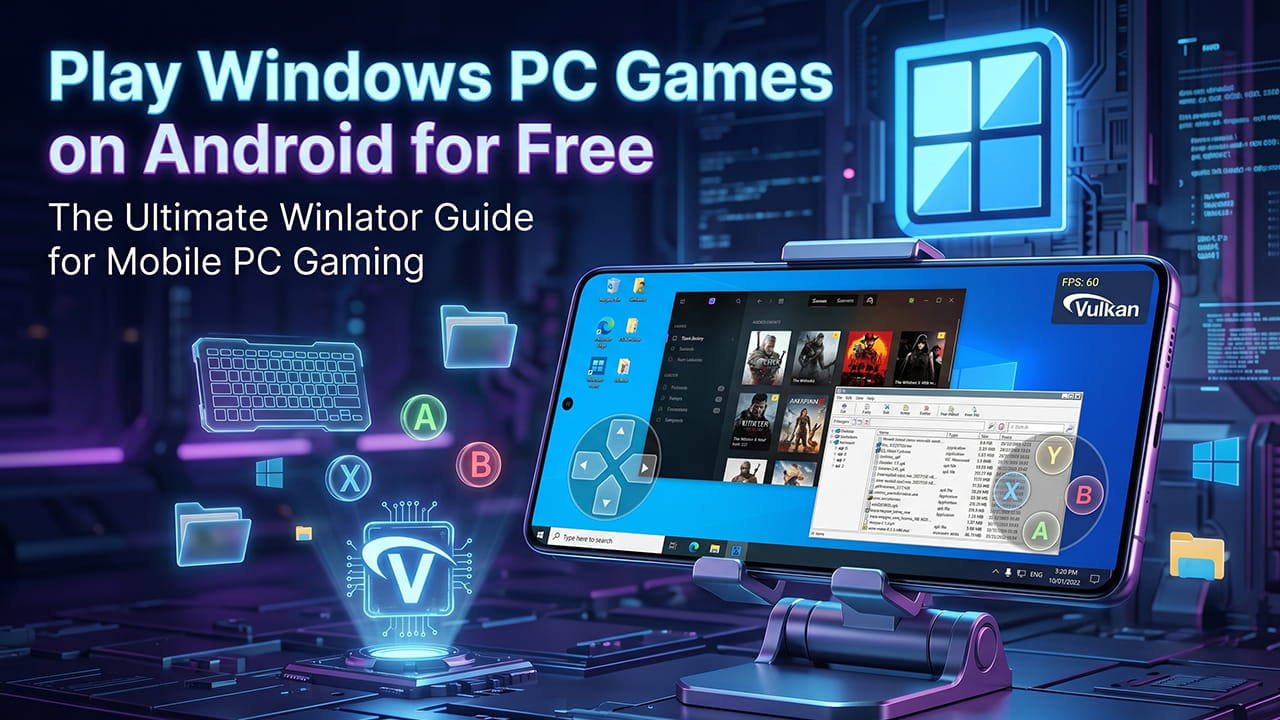
What is Winlator?
Winlator is a free Android application that creates a Windows-like environment on Android phones and tablets. It uses Wine together with Box86 and Box64 to make Windows software work on Android hardware.
In simple terms, Winlator translates Windows PC instructions into instructions that Android processors can understand. Because of this process, many PC games and applications can run on mobile devices.
The app is open-source, so users can download and use it without paying. In addition, the project keeps improving through updates and community support.
How Winlator Works
Windows PC games are usually made for x86 or x64 processors. Android phones use ARM processors instead. Since both systems speak different “languages,” Android devices cannot normally run PC games directly.
Winlator solves this problem by translating those instructions in real time. It also creates virtual Windows containers that act like small desktop environments inside Android.
These containers allow users to install and run Windows software just like on a PC. Furthermore, Winlator uses DXVK technology to convert DirectX graphics into Vulkan graphics. This helps the phone’s GPU render 3D games more efficiently.
As a result, many classic and mid-range PC games become playable on Android devices.
Main Features of Winlator
Custom Input Controls
Many PC games require a keyboard and mouse. However, phones use touchscreens. Winlator fixes this by allowing users to create custom touch controls.
Players can map keyboard keys, mouse clicks, and camera movement directly onto the screen. Because of this, games become easier to control during gameplay.
Support for Different Graphics Drivers
Different Android phones use different GPUs. Winlator supports multiple graphics drivers to improve compatibility.
Some of the most common drivers include:
- Turnip
- Zink
- VirGL
Adreno GPUs usually work best with Turnip drivers. Meanwhile, other GPUs may perform better with different settings.
Easy File Access
Installing games is simple because Winlator can access Android storage. Users can open setup files like .exe and .msi directly from the phone’s folders.
The “D:” drive inside Winlator usually connects to the device’s Download folder. Therefore, finding installation files becomes much easier.
Free and Open-Source
One of the biggest advantages is that Winlator is completely free. There are no hidden payments, locked features, or premium subscriptions.
Because the project is open-source, developers and users continue improving compatibility and performance over time.
System Requirements
Although Winlator is powerful, hardware still matters a lot. Weak devices may struggle with larger games.
Minimum Requirements
- Snapdragon 600 series processor or higher
- At least 4GB RAM
- Android device with Vulkan support
These specifications are usually enough for older 2D games and lightweight 3D games.
Recommended Requirements
For better gaming performance, stronger hardware is recommended.
- Snapdragon 8-series processor
- 8GB RAM or more
- Adreno GPU
High-end devices handle demanding games much better. In addition, stronger processors reduce crashes and stuttering.
Step-by-Step Winlator Setup Guide
Setting up Winlator correctly is important for stable performance. A small mistake in configuration can cause games to crash or fail to launch.
Download and Install Winlator
First, download the Winlator APK file and install it on the Android device.
Some versions may also require additional OBB data files.
Add the OBB File
If the version requires OBB data, place the file inside the correct Android/obb folder.
This step is important because missing OBB files can stop the application from working properly.
Create a Container
After launching Winlator, press the “+” icon to create a new container.
During setup, users can select:
- Screen resolution
- Graphics driver
- Container settings
Lower resolutions like 800×600 usually provide better performance.
Install Windows Games
Once the container opens, a Windows-style desktop will appear.
From there, open the “D:” drive to access Android storage. Next, locate the game installer and run it normally.
Most games install the same way they would on a regular Windows PC.
Improving Gaming Performance
Some PC games require extra tuning before they run smoothly on Android. Performance settings can make a major difference.
Lower the Resolution
Lower screen resolutions reduce GPU load. Because of this, games often run faster and more smoothly.
Change Graphics Drivers
Different games work better with different drivers. If one driver causes crashes, another driver may solve the issue.
Testing Turnip, Zink, and VirGL can improve compatibility.
Adjust DXVK Versions
DXVK settings affect how DirectX games behave.
Newer games may work better with DXVK 2.0 or newer. Meanwhile, older games sometimes perform better with WineD3D instead.
Close Background Apps
Background applications use RAM and CPU power. Closing unnecessary apps before launching Winlator can improve stability.
Games That Usually Work Well
Winlator performs best with older and mid-range PC games.
Popular examples include:
- Fallout: New Vegas
- Skyrim
- Age of Empires II
- Half-Life 2
- Need for Speed: Most Wanted
- GTA: San Andreas
Many indie games also run very well because they require less hardware power.
However, modern AAA games may still struggle due to hardware limits and DirectX compatibility issues.
Winlator FAQ
Here are the Winlator FAQ.
Is Winlator legal?
Yes. Winlator itself is legal because it acts as a compatibility layer and emulator. However, users should only install games they legally own.
Can Winlator run every PC game?
No. Some games work perfectly, while others may fail to launch. Games with anti-cheat systems or DirectX 12 support often have problems.
Does Winlator support controllers?
Yes. Bluetooth controllers, keyboards, and mice are supported. Users can configure them inside the Input Controls menu.
Why do games crash on startup?
Crashes usually happen because of incorrect driver settings, low RAM, or incompatible graphics configurations.
Trying different drivers and lowering the resolution often helps solve these problems.
Does Winlator need internet access?
Most games can run offline after installation. Internet access is only needed for downloading files, updates, or online multiplayer features.
The Future of PC Gaming on Android
Winlator shows how quickly mobile technology is improving. Phones are no longer limited to small mobile games only. Instead, they are becoming capable gaming devices that can handle full desktop experiences.
As Android processors continue getting stronger, compatibility will improve even more. Better GPUs, larger RAM sizes, and improved Vulkan support will help more Windows games run smoothly on mobile devices.
Because of this progress, portable PC gaming on Android is becoming more practical every year. What once felt like a technical experiment is slowly becoming a real gaming option for everyday users.