Many PC gamers use Android emulators to play mobile games on a larger screen with better performance. Games such as Genshin Impact, PUBG Mobile, and Arknights often run better on a PC when an emulator is properly configured.
Among the many Android emulators available today, LDPlayer is one of the most popular choices. It is known for its fast performance, low system requirements, and good optimization, even on older computers.
However, many users have concerns about privacy and security because LDPlayer is developed by XUANZHI, a company located in mainland China. Questions often come up about data collection, advertising, and whether the software can be trusted.
This guide examines how LDPlayer works, what information it collects, how its advertising system operates, and what users can do to improve privacy and security.
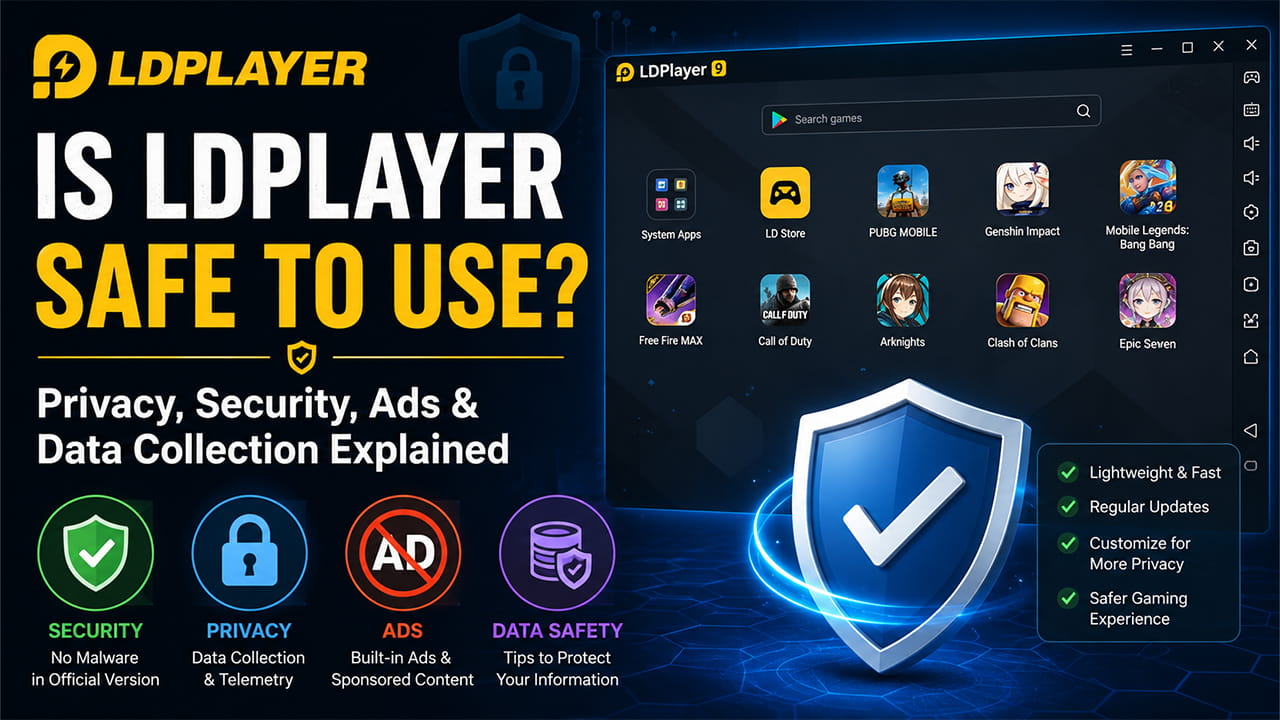
1. Safety and Malware Analysis
In its official form, LDPlayer is not considered malware. The software itself does not contain viruses, trojans, or other common forms of malicious software when downloaded from its official source.
Security scans of official installer files usually show clean results. In some cases, a few security products may label certain installer components as a Potentially Unwanted Application (PUA). This usually relates to bundled software offers rather than actual malware.
Even so, discussions about LDPlayer’s safety continue because of past incidents and the way the emulator interacts with the operating system.
The Fyservice and Crypto-Mining Incident
Several years ago, users reported issues involving a background process called fyservice.exe in older versions of LDPlayer, particularly version 3.73.
This process behaved similarly to cryptocurrency mining software. Users noticed unusually high CPU usage, poor system performance, overheating, and slow response times.
Reports later suggested that some problems were linked to compromised installer packages and modified downloads distributed through unofficial websites. Some users downloaded infected versions from third-party sources instead of the official distribution channel.
Current versions such as LDPlayer 5 and LDPlayer 9 do not include fyservice.exe. However, this incident serves as an important reminder. Software should always be downloaded directly from the official source and not from unknown websites.
Virtualization Architecture
LDPlayer operates using a modified VirtualBox-based virtualization system. During installation, the software adds drivers and services to Windows that allow Android applications to communicate with the computer’s hardware.
One example is the LdVBoxDrv driver, which helps manage virtualization functions and hardware acceleration.
Because these components work at a deep system level, they require elevated permissions. This allows the emulator to use resources such as the CPU, GPU, memory, and storage more efficiently.
Like any software that uses kernel-level drivers, a security flaw could theoretically affect the host operating system. While this does not mean LDPlayer is dangerous, it does mean users should keep the software updated and install it only from trusted sources.
2. Privacy and Data Security
Privacy concerns are often more complicated than malware concerns. A program can be free of malware while still collecting a large amount of user data.
LDPlayer includes telemetry systems that gather information about how the software is used. Users who care about privacy should understand what information may be collected and how it may be used.
Keyboard Input and Text Processing
One area that often raises questions is text input inside the Android environment.
Some Android system images may include third-party input methods such as the Sogou Pinyin Input Method Editor (IME). Like many modern keyboard applications, these tools may use cloud-based features to improve word prediction, spelling correction, and typing suggestions.
Since keyboard software processes information before it reaches an application, any typed data passes through the keyboard layer first.
This means usernames, passwords, payment details, and other sensitive information could potentially be handled by the keyboard software depending on its configuration and enabled features.
For this reason, sensitive information should be entered carefully inside any emulator environment.
Data Collection Practices
According to the software’s stated policies, LDPlayer may collect several categories of information.
These can include:
Device Information
- CPU model
- GPU information
- Operating system version
- MAC address
- Virtual device identifiers such as generated IMEI and IMSI values
Network Information
- IP address
- Network provider details
- General location-related information
Application Usage Data
- Applications opened inside the emulator
- Session duration
- User activity patterns
- Frequency of application usage
The company states that this information helps improve performance optimization, compatibility testing, and advertising services.
However, because some telemetry data may be transmitted to overseas servers, privacy-conscious users may still have concerns about how the information is stored and processed.
3. The Advertising Model
LDPlayer is available for free. Like many free applications, it generates revenue through advertising, sponsored content, and software partnerships.
Understanding how these advertisements work can help users avoid unwanted installations and unnecessary system clutter.
Sponsored Software During Installation
One of the most common concerns appears during the installation process.
The installer may present offers for third-party software such as antivirus programs, web browsers, VPN applications, or other utilities.
Users who quickly click through installation screens may accidentally approve additional software installations.
When accepted, these programs can be installed on the Windows system alongside LDPlayer.
For this reason, every installation screen should be reviewed carefully. Any optional offers that are not needed should be declined.
Advertisements Inside the Emulator
The default LDPlayer home screen contains various sponsored icons, banners, and game recommendations.
These advertisements are usually displayed through system applications running inside the Android environment.
Most advertisements remain inside the emulator window and do not directly affect the Windows desktop.
However, they may still use network bandwidth and consume a small amount of system resources while loading promotional content.
4. Steps to Improve LDPlayer Security
Users who choose LDPlayer because of its performance can take several steps to reduce privacy and security risks.
Step 1: Install Carefully
LDPlayer for Windows Download only from its official website.
During installation:
- Choose Custom Installation whenever possible.
- Read every screen carefully.
- Decline any third-party software offers that are not required.
- Avoid Express Install options if they include bundled applications.
Step 2: Replace the Default Launcher
The built-in launcher displays most of the advertising content found on the emulator home screen.
Installing an alternative launcher can reduce visual clutter and create a cleaner Android experience.
Nova Launcher is one commonly used replacement.
To change the launcher:
- Open Google Play Store inside LDPlayer.
- Install Nova Launcher.
- Open Android Settings.
- Navigate to Apps & Notifications.
- Select Default Apps.
- Open Home App settings.
- Choose Nova Launcher as the default launcher.
This change can reduce exposure to sponsored content and improve overall usability.
Step 3: Control Network Connections with Windows Firewall
Users who want greater control over outbound connections can create firewall rules for LDPlayer.
To do this:
- Press Win + R.
- Type wf.msc and press Enter.
- Open Windows Defender Firewall with Advanced Security.
- Select Outbound Rules.
- Click New Rule.
- Choose Program.
- Browse to the LDPlayer executable file.
- Select the file and continue.
- Choose Block the Connection.
- Apply the rule to Domain, Private, and Public profiles.
This can help reduce communication between the emulator software and certain external services.
5. Troubleshooting and Performance Optimization
Android emulators occasionally experience compatibility or performance issues. The following are some common problems and possible solutions.
Hyper-V and VirtualBox Conflicts
One common issue occurs when LDPlayer’s virtualization engine conflicts with Microsoft’s Hyper-V technology.
Hyper-V may be enabled through:
- Windows Sandbox
- WSL2
- Core Isolation
- Virtual Machine Platform
When conflicts occur, users may experience crashes, startup failures, or blue screen errors.
Possible solutions include:
- Disabling unnecessary Hyper-V features.
- Enabling VT-x or AMD-V in BIOS or UEFI settings.
- Ensuring virtualization settings are configured correctly.
High Background CPU Usage
Sometimes users notice unusually high CPU usage even when games are not running.
Possible causes include:
- Background updates
- Telemetry processes
- App store synchronization
- Internal Android services
To reduce resource usage:
- Open LDPlayer Settings.
- Select the Advanced tab.
- Limit CPU core allocation.
- Limit memory allocation when appropriate.
Users can also monitor Task Manager for processes such as adb.exe or ldnews.exe that continue running after the emulator closes.
So, Is LDPlayer Safe?
LDPlayer can generally be considered safe from a malware perspective when downloaded from the official source.
However, it is not widely viewed as a privacy-focused application.
The software collects telemetry data, displays advertisements, and includes features that may concern users who place a high value on privacy.
For gaming purposes, many users find the trade-off acceptable. For handling sensitive personal information, extra caution is recommended.
Recommended Security Practices
To improve security while using LDPlayer:
- Create a separate Google account for emulator use.
- Avoid signing in with a primary personal account.
- Do not enter banking information inside the emulator.
- Avoid using financial applications when possible.
- Limit access to shared folders and local files.
- Keep the emulator updated.
- Download updates only from official sources.
- Monitor running background processes regularly.
- Use firewall rules when additional privacy control is desired.
When treated as a dedicated gaming environment rather than a trusted workspace, LDPlayer can be used with a lower level of privacy and security risk.